Edit a Data Target's Configuration
The Edit option from the Action menu enables you to edit the configuration for the selected data target. From the Target Configuration page, you can make edits such as: update the title or projection, add, edit, or delete layers and fields, edit or copy layers, enable or disable exception code usage, update the globally unique ID field, and even add quality control checks.
Important: If changes are made to a published data target, the status automatically changes to draft and the Data Target is removed from the Data Targets list. Publish the target to add back to the Data Targets list.
 Target Configuration Workspace
The Target Configuration workspace consists of the following sections.
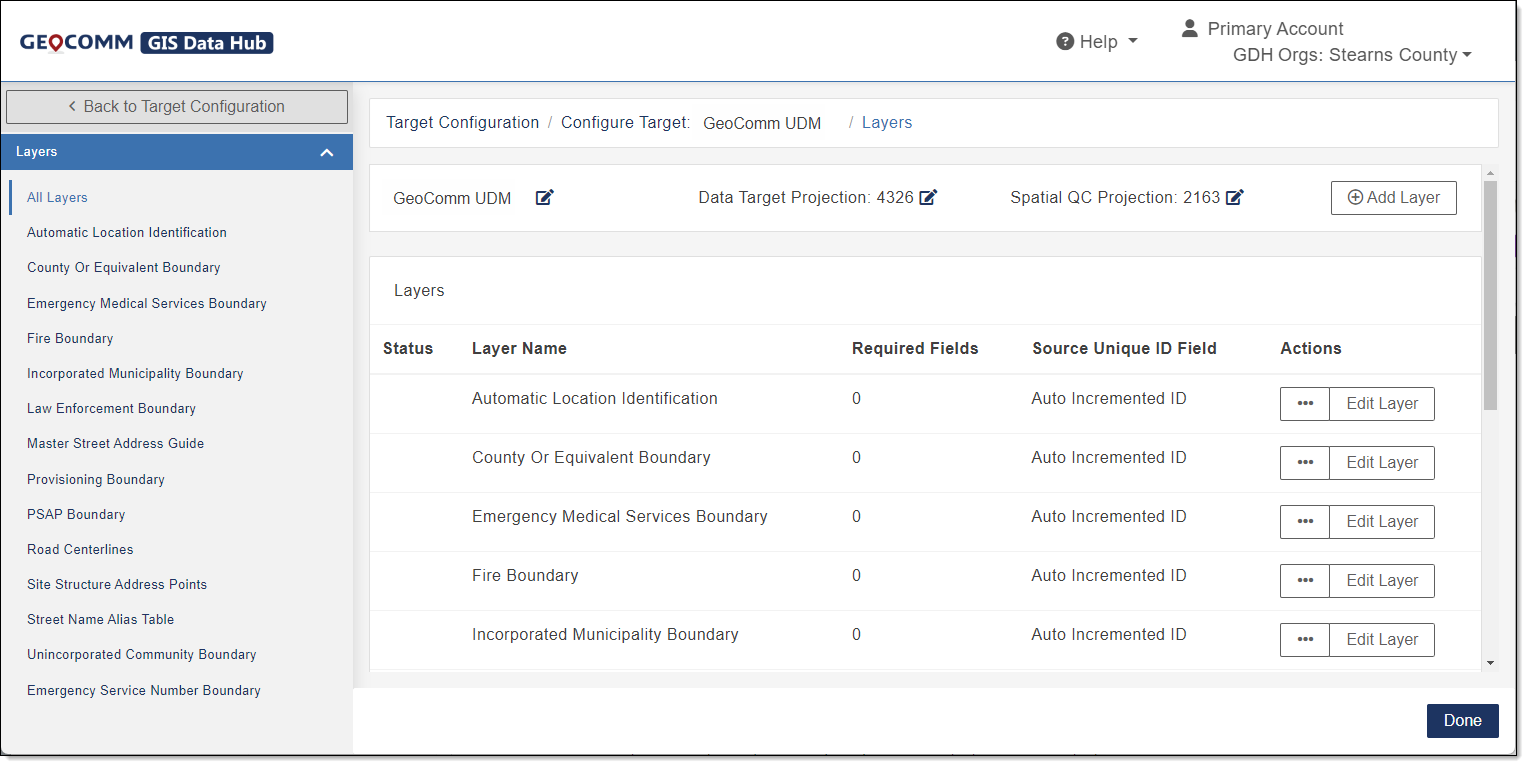
- Layer Panel: The Layer Panel displays a list of the layers for the selected data target. Clicking a layer opens the target configuration page for the selected layer.
- Data Target Configuration Title: The title provides a description of the data target you are configuring.
-
Target Name, Data Target Projection, Spatial QC Quality Control Projection, and Add Layer: This section consists of the following options that can be edited or added for the data target you are configuring.
-
Target Name: The title of the data target you are configuring.
-
Data Target Projection: Shows the current data target projection and enables you to enter a different projection. The default setting is 4326 (WGS1984). If a projected coordinate system is entered, this projection system is used to run spatial QC checks.
-
Spatial QC Projection: Shows the current spatial QC projection and enables you to enter a different projection. The Spatial QC Projection is required when the Data Target Projection is a geographic coordinate system since geographic coordinate systems cannot be used to run spatial QC checks. The default setting is 2163 (US National Equal Area).
-
Add Layer: Allows you to add a layer or table to the data target.
-
-
Target Configuration Grid: The grid consists of the following sections.
- Status: Identifies when a QC check is not configured correctly for the layer by adding an alert symbol
 to the Status column.
 - Layer Name: Identifies the layer within the application that can be configured for use with selected QC checks.
- Required Fields: Shows the number of required fields for this particular layer and allows you to set the fields within a layer to required. See Configure Data Target Layer Fields to set a field in a layer to required.
- Source Unique ID Field: Identifies the unique identifier (ID) the application uses to process your data. This field is not used for reporting. Only unique ID fields in the QC check set up area are used for reporting.
- Actions: Provides a list of actions available when working with the selected layer that may include the following:
Edit Layer: Enables you to adjust the configuration for the selected layer such as changing the layer name, field names, adding new fields, making particular fields a requirement, and setting up QC checks where the layer in question should be used.
If changes are made to a published data target, the status automatically changes to draft and the Data Target is removed from the Data Targets list. Publish the target to add back to Data Targets.
Copy: Use to duplicate an existing layer which then can be edited to create a new layer based on a pre-existing layer, instead of having to create a new layer from the beginning. With this method, all fields in the pre-existing layer are copied.
Delete: Delete the selected layer.
- Status: Identifies when a QC check is not configured correctly for the layer by adding an alert symbol
-
Done: Changes made to the Data Target Configuration are saved and the Data Target is updated.
Edit a Data Target Name
- In the Navigation Bar, select Account Settings.
- From Account Settings, select Data Target Configuration.
- Locate the data target you want to edit.
-
In the Actions column, select
 to view available actions and select Edit.
The Target Configuration - Layers window opens.
- By the Data Target name, click
 to open the Edit <Target Name> form.
 - In the Target Name field, type the new target name.
- Click Save.
-
When you are finished making changes to the Target Configuration page, in the lower right corner, click Done.
Changes made to the target configurations are saved—the Data Target is updated.
Edit a Data Target Projection
- In the Navigation Bar, select Account Settings.
- From Account Settings, select Data Target Configuration.
- Locate the data target you want to edit.
-
In the Actions column, select
to view available actions and select Edit.The Target Configuration - Layers window opens.
- By Data Target Projection, click to enable editing.
- In the Data Target Projection field, use the arrows or type the new spatial reference identifier (SRID A spatial reference identifier (SRID) is a unique identifier associated with a specific coordinate system, datum, and unit of measure.) of the data target projection you want to use.
- Click Save.
-
When you are finished making changes to the Target Configuration page, in the lower right corner, click Done.
Changes made to the target configuration are saved—the Data Target is updated.
Edit a Spatial QC Projection
- In the Navigation Bar, select Account Settings.
- From Account Settings, select Data Target Configuration.
- Locate the data target you want to edit.
-
In the Actions column, select
to view available actions and select Edit.The Target Configuration - Layers window opens.
- By Spatial QC Projection, click to enable editing.
-
In the Spatial QC Projection field, use the arrows or type the new SRID of the spatial QC projection you want to use.
Changing the Spatial QC Projection is a global change and changes all spatial checks for the data target.
Note: This is only required if your data target projection is in a geographic coordinate system since spatial QC checks require a projected coordinate system. Your data target is still created in the requested geographic coordinate system, but your spatial checks will run using this projected coordinate system.
- Click Save.
-
When you are finished making changes to the Target Configuration page, in the lower right corner, click Done.
Changes made to the target configuration are saved—the Data Target is updated.
Note: When editing the Spatial QC Projection field, click
 to reset to the default setting.
Add a New Layer
Add Layer allows you to add a new layer to the grid where it can be edited for use and assigned to a QC check or the layer can be mapped to your data targets. See Map Your Data Layers.
- In the Navigation Bar, select Account Settings.
- From Account Settings, select Data Target Configuration.
- Locate the data target you want to edit.
-
In the Actions column, select
to view available actions and select Edit.The Target Configuration - Layers window opens.
-
In the upper right of the page, click Add Layer.
The New Layer form opens.
- In the Layer Label field, type a friendly name to reference the layer in the application.
- In the Layer Name field, type the feature class or table name.
- If the layer contains geometry, select the Contains Geometry check box.
- In Geometry Type, select the type (Point, Line, or Polygon) of geometry.
-
Click Save.
The new layer is added to the Layers list.
-
When you are finished making changes to the Target Configuration page, in the lower right corner, click Done.
Changes made to the target configuration are saved—the Data Target is updated.
Edit a Layer
- In the Navigation Bar, select Account Settings.
- From Account Settings, select Data Target Configuration.
- Locate the data target you want to edit.
-
In the Actions column, select
to view available actions and select Edit.The Target Configuration - Layers window opens.
- Locate the layer you want to edit.
-
In the Actions column, select Edit Layer.
The edit layer page for the selected layer opens.
-
In the edit layer page complete any of the following.
Change the Layer Name
- By the layer name, click edit .
- In the Layer Label field, type a friendly name to reference the layer in the application.
- In the Layer Name field, type the feature class or table name.
- Click Save.
Edit Exception Code Field
Use the Exception Code Field to exclude a feature or tabular record from a particular action in GIS Geographic Information System. A computer application that involves storing and manipulating electronic maps and related data. Also, mapping software combining spatial information about where places and events are located with data attributes describing those places and events. Data Hub.
The Exception Code Field defaults to None unless a field in the layer is named gcexception or gc_exception. If a field is found with either of these field names, the Exception Code Field drop-down is prefilled with that field name. If your exception codes are located in data target field other than gcexception or gc_exception, the field can be selected from the drop-down. See Exception Code Basics for additional information on exception codes.
Complete the following to edit the Exception Code Field drop-down.
- Expand the selected layer name to show the Exception Code Field.
- Expand the Exception Code Field drop-down and click to select the field in your data target where your exception code is located.
A confirmation message is shown.
-
Click Done.
Important: The Exception Code Field drop-down must be mapped to the field in your data target that contains your exception codes. If that field is not gcexception or gc_exception, then manually select the correct field to ensure exception codes are enabled for that layer in your data target. Additionally, the source data must be field mapped for GIS Data Hub to read and apply any exception codes correctly. See Map a Target Field in a Data Layer to map your data layer field in your data target.
Edit Global Unique ID
When Global Unique ID is configured, all layers/tables with the configured parameter are scanned and their unique ID field is checked globally for uniqueness. This field defaults to none which is used when you do not want your data checked globally.
Additionally, the Global Unique ID field can be used during your data's transformation validation to provide the unique ID for the record or feature in the fallout report when applicable. The fallout report uses values from the configured Global Unique ID parameter, tying a transformational validation fallout to a specific feature within the layer. This also applies to tables.
Note: If the Global Unique ID is not set for the selected layer, the Object ID is used. It is recommended that the Global Unique ID is always configured.
Complete the following to edit the Global Unique ID field.
- Expand the selected layer name to show the Global Unique ID field.
-
Expand the Global Unique ID drop-down and click to select the field you want to use.
A confirmation message is shown.
-
(Optional) If using the Global ID for transformational fallouts and want to configure the Report Column QC check setting, see Configure Data Target QC Checks.
-
Click Done.
Edit the Extras Field
The Extras parameter is used when configuring a SI Spatial Interface Feed data structure. Please contact the GIS Maintenance Support Team for assistance.
Add, Edit, or Delete Layer Fields
In Fields, you can add a field, edit a field, or delete a field for a layer. See Configure Data Target Layer Fields.
Add, Edit, or Delete Quality (QC) Checks
In Quality Control (QC) Checks, you can add a QC check to a layer, edit settings for a QC check, or delete a QC check for a layer. See Configure Data Target QC Checks.
- By the layer name, click edit
-
-
When you are finished making changes, in the lower right corner, click Done.
Changes made to the target configuration are saved—the Data Target is updated.
Map layers for the Data Target must be mapped before running the data target. See Layer and Field Mapping.
Copy a Layer
Use to copy an existing layer when the fields needed are similar. Once copied, the new layer can be edited.
- In the Navigation Bar, select Account Settings.
- From Account Settings, select Data Target Configuration.
- Locate the Data Target Configuration you want to edit.
-
In the Actions column, select
to view available actions and select Edit.The Target Configuration - Layers window opens.
- Locate the layer you want to copy.
-
In the Actions column, select
to view available actions and select Copy.The Copy <Layer Name> form for the selected data target opens.
-
In the Layer Name field, type the new layer name.
-
Click Save.
The layer is added to the Layers list.
-
When you are finished making changes to the Target Configuration page, in the lower right corner, click Done.
Changes made to the target configuration are saved—the Data Target is updated.
Delete a Layer
- In the Navigation Bar, select Account Settings.
- From Account Settings, select Data Target Configuration.
- Locate the Data Target Configuration you want to edit.
-
In the Actions column, select
to view available actions and select Edit.The Target Configuration - Layers window opens.
- Locate the layer you want to delete.
- In the Actions column, select to view available actions and select Delete.
-
Click Yes, Delete to confirm.
The layer is removed from the Layers list.
-
When you are finished making changes to the Target Configuration page, in the lower right corner, click Done.
Changes made to the target configuration are saved—the Data Target is updated.